KINDLY REPLY HOW YOU LIKE IT

Programming Tutorials on different platforms

Any general and specialized interesting programming language training and exploration . Fun with knowledge .

Search This Blog

Sunday, September 23, 2012

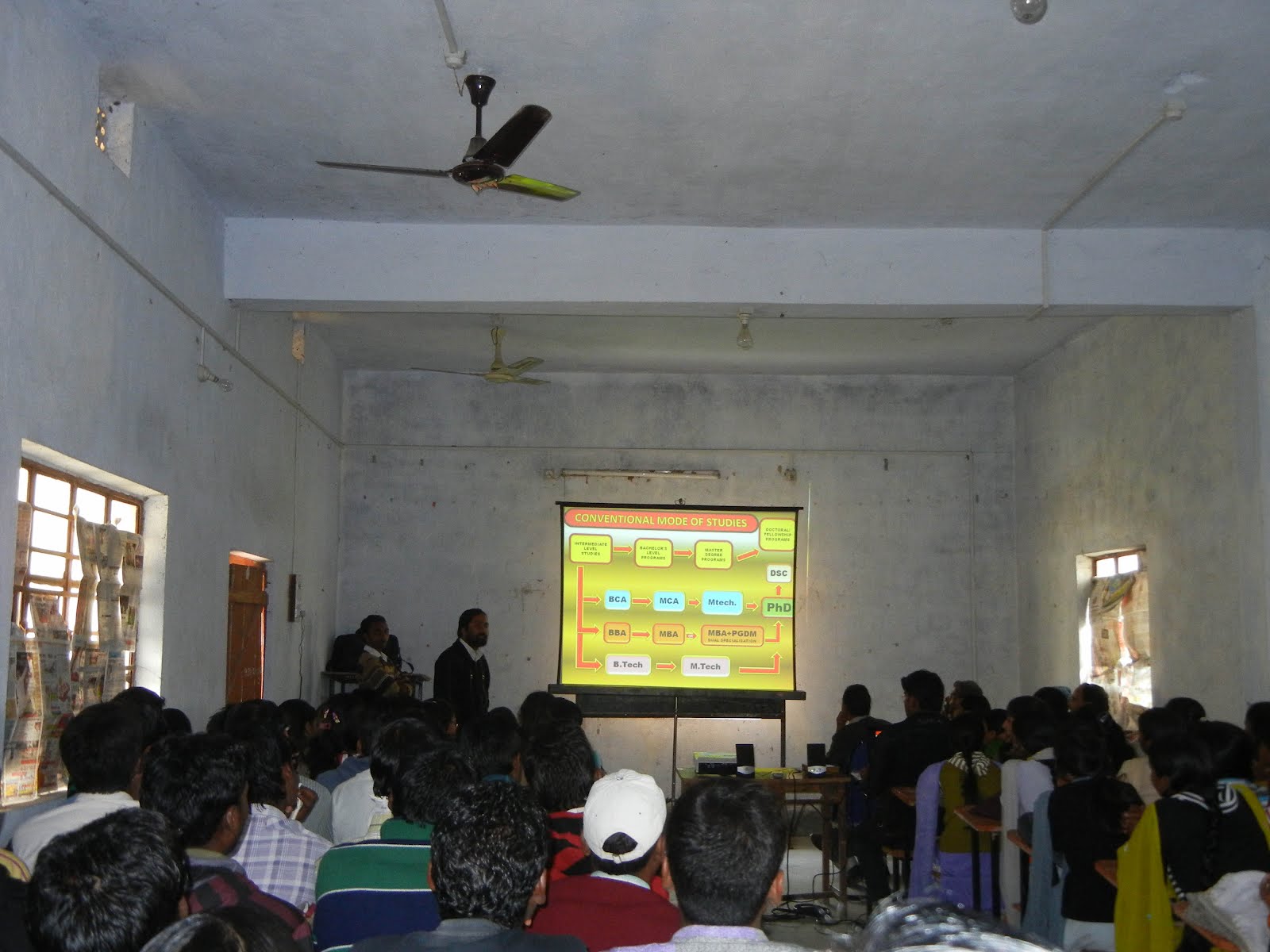
INFORMATION TECHNOLOGY SEMINARS FOR ENTIRE JHARKHAND

INFORMATION TECHNOLOGY SEMINARS FOR ENTIRE JHARKHAND, Rabindra Nath Tagore Inter College 18 jan 2012 Seminar Education is the process by which an individual is encouraged and enabled to develop fully his or her innate potential; it may also serve the purpose of equipping the individual with what is necessary to be a productive member of society. INFI-NITE, offers a comprehensive portfolio of technical training and education services designed for students, individuals, companies, and public organizations to acquire, maintain, and optimize their IT skills according to their real needs through high qualified experienced professionals. We guide Students in developing their academic projects and giving advanced technical training for B.Tech.,B.E, M.Tech.,MCA,M.Sc.-IT,BCA,B.Sc-IT & various other streams also. We maintain a complete project training with Real Time experience. We are exceedingly dedicated to the development and delivery of quality training program. We insist on maintaining our reputation as a quality training resource that is in tune with the modern computer users needs, and as an organization that keeps on top of the ever-changing industry trends. We believe in the importance of computer skills to all students and employees, we started to provide students with an easier way of learning. We support our training staff with all facilities to improve the training Quality Improvement Program, with Competent instructors, up-to-date material, and an overall outstanding quality of the training plus the equipment and facilities. The classroom experience has become more enriching, dynamic, and valuable for our students. We provide services to Colleges, Universities and educational institutions. We also provide end to end solution to institutions. INFI-NITE Technologies INFI-NITE Technologies, provides high quality on site services for software development and the end users on a broad range of hardware & software platforms and latest technologies. Within the first year of its operations, INFI-NITE Technologies , has carved a niche for itself in the IT industry and has increased its business by acquiring some major domestic projects. No doubt the company has been able to make a name for itself in a relatively short span of time only because of its ability and commitments to ensure customer satisfaction by rewarding quality work on right time and in a right manner.

Sunday, August 14, 2011

Next Microsoft Office Versions is MS Office 2012 – Released Date July-2-2012

Microsoft Office is a proprietary commercial office suite of inter-related desktop applications, servers and services for the Microsoft Windows and Mac OS X operating systems, introduced by Microsoft in 1989. Next version of Microsoft office is MS Office 2012 and Microsoft Office 2012 is expected to be released to manufacturing on July 2, 2012. Microsoft Office 2012 Microsoft Office 2012.


Give us more ! updates on latest products !

Monday, August 1, 2011

Hidden commands in windows …

Here are few examples of some hidden secret commands in Windows:
1. ‘systeminfo’
It boasts how long it can stay up. Whereas previous versions of Windows were coy about how long they went between boots, XP is positively proud of its stamina.
Go to the Command Prompt in the Accessories menu from the All Programs start button option, and then type ‘systeminfo’. The computer will produce a lot of useful info, including the uptime. If you want to keep
these, type ‘systeminfo > info.txt‘. This creates a file called info.txt you can look at later with Notepad. (Professional Edition only).
2. gpedit
You can delete files immediately, without having them move to the Recycle Bin first. Go to the start menu, select Run… and type ‘ gpedit.msc‘; then select User Configuration, Administrative Templates, Windows Components, Windows Explorer and find the Do not move deleted files to the Recycle Bin setting. Set it.
Poking around in gpedit will reveal a great many interface and system options, but take care — some may stop your computer behaving as you wish.
(Professional Edition only).
3. rundll32.exe
You can lock your XP workstation with two clicks of the mouse. Create a new shortcut on your desktop using a right mouse click, and enter ‘rundll32.exe
user32.dll,LockWorkStation‘ in the location field. Give the shortcut a name you like. That’s it — just double click on it and your computer will be locked. And if that’s not easy enough, Windows key + L will do the same.
4. sysoc.inf
XP hides some system software you might want to remove, such as Windows Messenger, but you can tickle it and make it disgorge everything. Using Notepad or Edit, edit the text file /windows/inf/sysoc.inf, search for the word ‘hide‘ and remove it. You can then go to the Add or Remove Programs in the Control Panel, select Add/Remove Windows Components and there will be your prey, exposed and vulnerable.
5. schtasks
For those skilled in the art of DOS batch files, XP has a number of interesting new commands. These include ‘eventcreate‘ and ‘eventtriggers‘ for creating and watching system events, ‘typeperf’ for monitoring performance of various subsystems, and ‘schtasks’ for handling scheduled tasks. As usual, typing the command name followed by /? will give a list of options — they’re all far too baroque to go into here.
6. ipv6
XP has IP version 6 support (the next generation of IP). Unfortunately this is more than your ISP has, so you can only experiment with this on your LAN. Type ‘ipv6 install‘ into Run… (it’s OK, it won’t ruin your existing network setup) and then ‘ipv6 /?‘ at the command line to find out more. If you don’t know what IPv6 is, don’t worry and don’t bother.
7. taskkill
You can at last get rid of tasks on the computer from the command line by using ‘taskkill /pid‘ and the task number, or just ‘tskill’ and the process number.
Find that out by typing ‘tasklist’, which will also tell you a lot about what’s going on in your system.
8. zipfldr.dll
XP will treat Zip files like folders, which is nice if you’ve got a fast machine. On slower machines, you
can make XP leave zip files well alone by typing ‘regsvr32 /u zipfldr.dll‘ at the command line. If you change your mind later, you can put things back as they were by typing ‘regsvr32 zipfldr.dll‘.

Edit the Windows boot settings

Edit the Windows boot settings stored in Boot.ini
Default identification strings:
OS Load Options = /Fastdetect
Load Identifier = Microsoft Windows XP Professional
If you intend to rebuild the boot.ini file, delete it first – boot into the recovery console then:
ATTRIB -H -R -S C:Boot.ini DEL C:Boot.ini Bootcfg /Rebuild Fixboot

Syntax

BOOTCFG /addsw Add OS load options for an OS entry in boot.ini BOOTCFG /copy Duplicate the entries for an OS instance.

BOOTCFG /dbg1394 Configure 1394 port debugging

BOOTCFG /debug Edit the debug settings for an OS.

BOOTCFG /default Specify the default OS

BOOTCFG /delete Delete an OS entry [operating systems] section of Boot.ini

BOOTCFG /ems Redirect the EMS console to a remote computer (server only).

(Emergency Management Services)


BOOTCFG /list List entries in boot.ini

BOOTCFG /query Display section entries from Boot.ini

BOOTCFG /raw Add OS load options, specified as a string

BOOTCFG /rebuild Totally rebuild boot.ini (use when Windows won't start)

BOOTCFG /rmsw Remove OS load options for an OS

BOOTCFG /timeout Change the OS time-out value.

Sunday, July 24, 2011

Use a Cell Phone Number as an Email Address with iNumbers


These days, we have countless addresses for communication. We have an email address, an @Twitter address, a Facebook ID or fan page (if promoting a business or cause), a handful of instant messenger accounts and a cell phone number that can receive phone calls and text messages. At the end of the day, it would be nice to have one ID to rule them all…
A Web site called iNumbers has plans to turn our cell phone numbers into our main ID, Web or otherwise. Right now, all the site does is create an email address from a cell phone number and then forward all email sent to that address to a normal email address.

The sign up process for iNumbers is very easy. On the homepage, type your phone number (with country code—if you live in the USA, your country code is 1) and click sign up.

An authentication code is then sent to your phone via SMS text message. When the code arrives, type it in the box on the far right of the next page.
You can then fill in the rest of the required information, such as your name, address, and the email addresses where you would like your iNumbers email delivered. Select a password for your new account, then click sign up at the bottom of the page.

That is all there is to it—now you can receive email at the address @iNumbers.com. The site also hopes to add instant messaging and other services in the near future, all centered around cell phone numbers. iNumbers makes money by adding an advertisement to each email forwarded.
The value of the service iNumbers provides varies depending on your needs. If you need an official looking email address with your cell phone number as part of the address and do not mind extra advertisements, then try the service.
Also keep in mind that most free email services will allow you to create an address using the digits of your cell phone number, then you can forward that email address to your main address. So, for now, we must continue use a multitude of IDs to communicate in the real and virtual world.
https://www.inumbers.com/cgi-bin/inum

Jaxtr – Link your phone to your online network and recieve calls for free

Jaxtr is a voice service that lets you link your phone to the web so that you can be contacted by anyone worldwide without having to share your phone. Since Jaxtr uses a normal URL address to link to your phone, you can post this address on your blog, your profile on MySpace or FaceBook, on auction sites like eBay or Craigslist, or just about anywhere!
You can also control who can call you and who goes directly to voicemail and who gets to ring through to your phone. Jaxtr works with your cell phone or land line phone, so no additional equipment is required. Once you create an account, log into the system and add your phone so that you can begin receiving calls. You’ll receive a phone call from the Jaxtr service and you must put in the code displayed in your browser. Wait a minute or two and the web site will update with confirmation that you phone has been activated.
On the home screen, you’ll see your phone link that you can use in emails, web sites, etc. Using Jaxtr, you can call other Jaxtr users for free or receive calls from anyone that use up Jaxtr credits. Every month you get 100 Jaxtr credits for free. You can get more Jaxtr credits by recruiting others to the service or by simply buying them.
Using Jaxtr, you can receive calls from over 51 countries at rates that are comparable to calling someone locally. Also, they have a very nice widget that you can use on your blog or other social networking site. It also integrates well with GMail, Hotmail, AOL, etc for inviting friends to the service.
The downside is that if you run out of Jaxtr points, you won’t receive any more calls on your phone, they all simply go to voicemail. Hopefully, they change this in the future and allow calls to come through and simply charge for the extra services. Also, they currently do not have a way to buy Jaxtr credits directly from the web site, you have to invite others to get more credits! However, they are working on setting up some kind of system to allow direct purchase.

Overall, an interesting service that might be useful for some people who want to use the service on a small scale.

How to open multiple Google user accounts on one computer

How to open multiple Google user accounts on one computer
Wish you could log into multiple Google or Gmail accounts at the same time?
So how can you setup your computer so you can log into multiple Google profiles at once? There are actually a couple of ways you can go about this, each having it’s own advantages and disadvantages. Note that I am not talking about logging into multiple email accounts at one time, like Gmail, Hotmail, Yahoo mail, etc.

If you want to see all of your separate email accounts at once, you can go to your Gmail settings and tell it to check all of the other accounts so you get your email in one place. I’m only talking about situations where one computer is being used by multiple people and each person needs to log into their own email.
How to access multiple Google accounts/profiles at once
1. Use multiple browsers – This is probably the simplest way to solve this problem. Basically, if you’re on Windows, you’ll already have IE installed and you can go ahead and install Firefox and another browser like Safari or Flock. You can actually install all four if you want!
Each browser maintains their own settings, so you can have one Gmail or Google account logged into each different browser. Of course, the downside is you have to use different browsers, which you may or may not like. This method has worked out nicely for my situation since my wife likes IE and I love Firefox! Problem solved! I open my browser, she opens her browser.
2. Use CookiePie Firefox Extension – The reason why you don’t have to constantly keep entering your password to log into Google or Gmail is because cookies are stored on your computer which save your personal settings. If you can maintain separate sets of cookies for each user and switch between the sets easily, then you can use run multiple Google (Gmail, etc) accounts in one browser!
CookiePie is a cool add-on that does just that. The cool thing about CookiePie is that you can use it to not only log into multiple Gmail accounts, but any sites that uses cookies, i.e. multiple Yahoo email accounts, Hotmail accounts, etc. It’s not just specific to Gmail or Google.
3. Gmail Manager Firefox Addon – This also requires that you use Firefox as your main browser. Gmail Manager for Firefox is another cool add-on that allows you to manage multiple Gmail accounts from one browser window. It resides at the bottom right task bar of Firefox and displays your account details including unread messages, saved drafts, spam messages, labels with new mail, space used, and new mail.
4. IE Tab Firefox Extension – This is another Firefox extension that basically allows you to run IE within Firefox. Since IE is loaded into a Firefox window, it’s still maintains it’s own separate set of cookies and therefore allows you to manage two profiles or accounts at the same time. Download IE Tab Firefox extension.
5. MailPlane For Mac – Don’t worry, I didn’t completely forget about the Mac people out there! If you’re looking for a way to use multiple Gmail accounts on a Mac at the same time, your best best is MailPlane. I’ve not used MailPlane myself, but I’ve heard it can handle this type requirement. There’s also a Firefox and Safari add-on for Mac called Profile Manager, but you have to know how to use the Terminal.

Please suggest if there are other ways out !

How to make Firefox look like Internet Explorer and Safari


Are you one of those people that has been using Internet Explorer for as long as you can remember and then suddenly one day someone told you to check out Firefox because it’s a hundred times better? You give it a shot and end up really like it, especially with it’s ability to be extended and enhanced using addons and extensions.
However, a problem that you can end up having is the fact that you’re so used to the location of all the buttons in IE that you’re constantly clicking in the wrong places to get to Home or to Refresh the page, etc. Or maybe you simply liked the Internet Explorer interface more, especially after the release of version 7? Or maybe you hate that too and really like the Mac interface a lot?
Whatever you like or don’t like, you can change the interface of Firefox to look like Internet Explorer 6, 7 or Mac Safari browser! This may not be very practically useful, but for those people who like to stick to one type of GUI, this is the best way to switch browsers without feeling like you really have!
Of course, only a Firefox addon would allow you to do this. That’s why Firefox is better!
Make Firefox look like Internet Explorer 6
Once you download the addon, you’ll end up with the good ol IE 6 interface.

Make Firefox look like Internet Explorer 7
Now this one is really cool! The interface is an exact replica of IE 7! Neat!

Make Firefox look like Safari
This is addon also does a very good job of replicating the Mac Safari interface.

That’s about it! Now no one has an excuse not to switch to Firefox! It’s faster, more secure, and has the ability to things IE could never dream of! If you’re not already using Firefox, you should definitely check it out. Source: Techno Juice
Neofox IE 6 1.6

Spoof Card

How to fake caller id, spoof calls, change your voice and record calls
How to change or spoof caller ID, change your voice before calling someone, and record calls! Using some of these techniques, you can keep your calls very private whether it be for business use or just for fun!
You can do all of these things by using a single web site called SpoofCard. This site is just plain cool. Using the service, you have the ability to change the Caller ID number that the person you are calling sees to anything you want! That’s the really cool part, it can be any number! Once you sign up for the service, you call a toll free number followed by your pin. You’ll then enter the destination number and then enter the number you want to appear on their caller ID. Not only will the number show up, but the name registered under that number will also show up.

So you might be wondering if this is legal or not? Actually, it is AS LONG AS its intent is not to cause hard or defraud someone! So DO NOT use the service for those purposes!
The other really neat feature of SpoofCard is the fact that you can change your voice to a Male or Female voice. You can actually even change it in the middle of a call in real time! Also, all calls can be recorded at any time in the conversation and can be retrieved later on by logging into the web site.
SpoofCard can be very useful for many business professional, such as doctors who have to return calls to patients or lawyers who may want to record all conversations with clients for future reference, etc. It can also be used to call in a woman’s voice etc !
As of right now, you cannot use SpoofCard to make calls Internationally. The pricing for using SpoofCard is also very reasonable with the breakdown shown below:
60 minutes – $10
120 minutes – $20
240 minutes – $40
480 minutes – $80
Overall, a very useful service.
http://www.spoofcard.com/index.php

How to connect your Laptop/PC/Computer to your TV

How to connect your PC or computer to a TV
1. S-Video – This is probably the most common method out there currently because an S-Video cable is cheap as heck and just about every TV under the sun has a S-Video port. You’ll have to make sure you laptop is equipped with this port. Remember, there are two types of S-Video cables: 4-pin and 7-pin. Most laptops and PC’s are equipped with a 7-pin port, so if your TV only has a 4-pin S-Video port, then this method will not work.
2. VGA – If you have a HDTV, then you will be better off connecting using a VGA cable. It gives much better quality than S-Video and as with S-Video, the cable is very cheap. You usually won’t find a VGA port on regular TV’s though, so this option is if you have an HDTV.
3. DVI - DVI stands for Digital Visual Interface with “digital” being the key word there. The digital signal will give a higher quality picture than either S-Video or VGA. Of course, your computer will need to have a DVI connection and your TV will need to be an HDTV. This cord is definitely not cheap, it ranges anywhere from $40 to $80.
4. HDMI – Using HDMI will give you the best quality by far. No computers that I know of yet have HDMI ports, but you can get a DVI to HDMI cable to connect it to your HDTV. HDMI is compatible with DVI.
5. Scan Converter Box – This is the last method that I could think of and it involves using a scan converter box, which takes a VGA signal and converts it into S-Video or component video.

Devices attached and involved :

How to check all of your email accounts from Gmail

Everybody these days has more than one email account, usually more than can be counted on one hand. Personally, I have 5+ accounts with different email service providers, including Yahoo, Gmail, Cox, my office email address, my website email, etc, etc. Currently, I use Outlook to check all of my accounts from one client application since it makes it easier to manage.
If you’re ok with Outlook, then there’s not a problem. However, if you prefer to use Gmail for everything since it’s web-based and therefore not tied down to one computer like Outlook, then you might be interested in knowing how to setup all of your email accounts in Gmail so you can receive all emails via your Google Inbox.
So here’s how to setup Gmail as a master account for collecting email from all of your other online accounts:
First, log into your Gmail account and click on Settings at the top right corner.

Now click on the Accounts tab and click on Add another email account under the Get mail from other accounts heading.


Now you’ll be presented with a little pop-up window where you can enter in the email address for the account you want to add in. The cool thing about this is that you don’t have to sit there and worry about finding the pop and smtp server names for your ISP, Google will automatically try to determine the servers for you based on the email address!


After you enter your email address, Google automatically determined the POP server name and the port number. All you have to do is enter in your password for the account.
You also have the option to leave a copy in your account, label the messages from the new account so you can sort them quickly, and to archive them directly so that they don’t show up in your Inbox.
Now the email accounts will be checked by Google on some periodic basis and the emails will be retrieved and stored according to your preferences. Unfortunately, you cannot set the time period for the email checking.
Even if you do not want to use Gmail as a catch-all account, it’s still a great way to backup all of your other email accounts, especially if you’re using Outlook. Just configure each new account to be archived automatically. That way, you can continue to check emails through Outlook, but it’ll all be backed up on Gmail too. If your computer crashes and you lose your Outlook data file, the emails will still be in Gmail!

Kindly feedback ,

XP SysKey Trick

XP SysKey Trick


If you have Windows XP then I really think you're going to like this week's security tip. Are you in a situation where you really don't want anybody accessing the family PC while you're not around? Maybe you don't want anybody to use your computer at all. Maybe you just want a little tighter control over when and by whom your PC gets used. If any of these situations sounds like yours then read on.

This week's security tip is on the syskey command. The syskey is a command line tool to help you enable your Startup Key. Without getting too techy on you, the Startup key is a complex algorithm that if configured can stop anyone from logging on to your system who doesn't poses the key. No startup screen or user accounts will be available until you present the key, you're basically looking at a black screen with one small lonely window asking for the Startup Key to gain access. The Startup Key, which is a floppy disk with the appropriate key code, simply needs to be inserted into the floppy drive, and activated. This will satisfy the security request and allow you to proceed to the login screen. If you don't have a floppy drive then I'm afraid you might as well stop reading now.
The Startup Key is created when you enable the Startup Key process as described later in this article. One thing you must keep in mind, and is of the utmost importance, you should make at least one copy of this floppy, test it to insure that it works, and put it in a safe place. If you lose this Key you will not be able to log into you Operating System. You may even want to make a third copy to keep off-site. If you do lose your Startup key then your only option is to use a Restore Disk (If you have one) to restore your registry to a state it was prior to the enabling of Startup Key.
OK, if this sounds like a security measure you would like to put into action then follow the directions below. Again, please make at least one copy of this disk so you don't lock yourself out of your system and send me a bunch of hate e-mail. Well, with that said twice I guess it's show time. The directions below will help you get things set up, and below that I have attached a link out to Microsoft's information on this so you can look it over.
CONFIGURING STARTUP KEY:
* Go to Start/Run and in the blank field type "syskey" press enter, or OK.
* You should see a small window titled "Securing the Windows XP Account Database". From this Window select the "Update" button to move to the next window.
* The "Startup Key" is the next window. You'll see a couple of options there, but the one we are looking for says "Startup Key on floppy disk", along with some warning about how your system is going to startup now.
* After selecting this click OK, and a pop-up will alert you that the key has been changed. Another message follows asking you to insert a disk in drive A: (Floppy drive).
* Insert the floppy, click OK, and one more window will come up telling you that the Key has been changed and you need to have this floppy disk in order to log into Windows. That's exactly what we want.
When you're all done go ahead and eject the floppy (you might want to slide the little lock up on the floppy to insure you don't format it on accident), and restart the PC. Windows will appear to come up normally, but after it loads the kernel the "Windows XP Startup Key Disk" window pops-up. Grab your Startup Key floppy put it in the floppy drive, and select OK. You'll see Windows load up and bring you to your user logon screen.
I told you this is a cool trick and really helps lock down you PC. I hope you get some use out of this, but please be careful.

Wireless Security

Wireless Security

The ability to share an Internet connection is great and the ability to do this wirelessly is even better. Wireless networks are easy to install, you don't have to run cables, and you can roam around a location within the WLAN (wireless local area network), or physical range of wireless connectivity . These features are what makes wireless networks so popular with both end users, and hackers.
The one problem with wireless networks is the vulnerability of your network. A typical hardwired network has physical security due to limited access to the actual network and one opening to the internet (Gateway) has a firewall or two in place (or it had better). This can stop most unauthorized access to your network. The difficulty in setting up wired networks has discouraged a lot of people from installing networks in the first place.
Then a long came the wireless which, as I stated earlier in the article, made the home networking game more appealing and not as intimidating. Having a wireless network means that the physical security that is inevitable in a wired network is simply not there. Anyone in the range of your wireless network can see your network, and if not secured properly, can gain access. If your wireless access point isn't the router on your network then outsiders can slip in behind your firewall. This used to happen at my college, there was an apartment complex behind a portion of the school, and the other techs would piggyback on some guy's network. He had an unsecured wireless network, no one did anything bad to him, they just used him for Internet access but he never knew.
There are some practices you can perform to insure that no one is using your connection or trying to get on your personal network. First and foremost you need to get WEP (Wired Equivalent Protection) in place, which is an encryption that stops unauthorized users from accessing your network. There are at least two encryption types in 802.11b (128bit, and 64bit) and should probably be changed every other week or so. WEP encryption used to be completely the user's responsibility, but now I'm seeing hardware out of the box with at least one encryption key configured, forcing the user to configure his PCs in order to connect.
Using WEP is essential to wireless security, but don't rely on it alone, there are other security measures you can put in place as well. With some wireless units you can set a MAC address filters, witch can really beef up your security. A MAC address is an identification number the manufacturer stamps on a network device, and is (or should be) completely unique. If this security is in place then even if someone knows the WEP Key they still cannot get into the network because your wireless access device will deny it.
There are two other things you might want to do to tighten up your network: The first thing you should do is go through and change all of the default security settings, and passwords. The reason I said this is most Routers and access points usually have a lot of these configuration fields (i.e. username and password or the SSID ) filled out with generic values for ease of setup. The bad thing about this is that people can use these settings against you to gain access into your network. Secondly, with a lot of routers your SSID is set to broadcast by default, this means that it's broadcasting your network's name to the physical reaches of your network. Not good, even if your neighbors don't have the security rights to access your network they will constantly see it every time they boot up one of their wireless PC's.

Virus, Trojan, Worm Infection and Remedy

Virus, Trojan, Worm
Basically, they all fall under the generally category of "viruses". However, there are a few distinctions.
Virus - Technically, a virus infects another file (attaches or inserts itself into it). They usually infect program files or MS Office documents. From there, it can replicate, do damage, etc. Unlike a worm, these do not function as a stand alone (except possibly to infect a given file).
Worm - This is almost identical to a "true virus", except that it lives on its own and generally doesn't infect other files (although it can replace them). Usually, these copy themselves using e-mail, networks, disks, etc. Again, these are very close to a true virus, and can do the same kind of damage.
Trojan Horse - This type of program doesn't copy itself but does do damage to your computer. These types of programs rely on people to pass them around and to run them. They do not e-mail themselves. The idea is to make the program look like it's something harmless, like a screen saver or joke, so it gets sent around.


Web Bugs


Have you ever heard the term Web Bug? How about Web Beacon or Clear GIF? Well, don't feel left out if you haven't, it's not everyday terminology. The terms I mentioned are different names for the same thing. For the sake of remaining simple I'll stick with one name Web Bug. So what are Web Bugs and what to they do? They are small (1 by 1 pixel), usually transparent gifs hidden on websites or e-mails within other images like banner adds. Web bugs come from a different site than the one you are viewing but are most often affiliated with the site being viewed.
They are a lot like cookies in that they allow sites to recognize you and track where you've been. Web Bugs have a couple of major differences however. Web bugs share your information with any site that you may visit with the same type of web bug imbedded on it. The personal information bugs are sharing can be harmless information or very personal information, it depends on what information you have put on one of these sites. If you have given one of these sites information like your email address, then every other site you visit with the same bug will have your email address and can now send you spam. By sharing this personal information between sites these entities using bugs can get your email address and send out more spam and web bugs right to your front door. If you visit a site that recognizes you from a Web Bug then that server can not only track you but also send images and blocks of text to you. Web Bugs are also harder to detect than cookies because they are hidden, extremely small, and invisible.
These Web Bugs can also be placed in e-mails, a favorite trick of spammers is to hide a Web Bug in a random email. Opening or even previewing this e-mail can initiate the Web Bug process, which tells spammers that this is a valid e-mail address when someone views it. This validates your address, essentially making you part of their list of e-mails to spam. Most of the more recognized e-mail clients are affected by this such as Outlook Express, Gecko for Linux, Netscape, AOL, and more.
So, how do you stop or prevent these web Bugs from tracking you? As far as e-mail, make sure you don't open or even preview e-mails from unknown sources. Another thing you can do to prevent the Web bugs from biting is to block images in your e-mail all together, this will stop the GIFs from getting through your defenses. Win XP Service Pack 2 turns this setting ON by default in Outlook Express, and other e-mail clients have similar options (i.e. MSN/Hotmail and AOL).
You can also configure tougher cookie settings in your browser, but keep in mind all of these settings will affect the way you surf the web and view your e-mail. You can get advertising blocking software, but these programs have a hard time distinguishing between images that show information and images that are crawling' with Bugs. You can also go through the HTML code and look for the img tag that relates to a cookie (sounds like fun).
So are these bugs really something to get all worked up about? Well if you really don't like the thought of constantly being tracked and evaluated. If you don't like spam or pop-ups then this could be something you might want to at least regulate. You can figure out exactly what a web bug is doing by viewing the privacy policy which should be located on the website of the owner of the bug. If you don't find the privacy policy, you can always send the company e-mail and ask for what purposes do they have web bugs on their site.

What is a Trojan horse?
In it the Greeks give a giant wooden horse to their enemies, the Trojans, supposedly as a peace offering. But after the horse is inside the city walls, Greek soldiers sneak out of the horse's hollow belly and open the city gates, allowing their soldiers to enter and capture Troy.
Similarly, what is known as a Trojan horse is a destructive program disguised as a simple application or useful program. The program contains additional hidden code which allows the unauthorized collection, exploitation, falsification, or destruction of data. Though lumped in with viruses, it doesn't propagate itself like a virus does.
One of the worst kinds of Trojans is a program that claims to rid your computer of viruses but instead puts them on your computer. Another common type will open a security hole for a hacker to get into your system and do all kinds of nasty stuff
You can prevent getting a Trojan Horse by having up-to-date anti-virus software, not opening unsolicited attachments, and scanning freeware and shareware you download before you unzip.
What kind of attachments can contain viruses
A:
Basically, anything that is executable (able to run). You're generally safe with picture files, text files, and the like. However, it still pays to scan first.
Here is a very short list of the most common to watch out for:

exe
zip
scr
vbs
bat
com
pif
asp
doc
xls
Those are the most common; don't misinterpret this to mean that if you get one of these files it's automatically a virus. A ".zip" file may be nothing more than a set of compressed files your friend sent you to look at. A "doc" or "xls" file may simply be an MS Office file. It's just that these type of files could also be viruses.
A couple other virus tricks you need to be aware of. First, MS Office files can contain what are called "Macro Viruses". Without getting into too much detail, these files can run a "macro" (a macro is a mini-program run from within another program) that can be as destructive as any "regular" virus. So, my advice on MS Office attachments is not to open them unless you are expecting them. If they just show up, verify with the sender first.
The other trick you need to look out for is an extra extension added to an attached file. For example, you may have something like "mypicture.jpg.vbs". In fact, if you don't have your computer set to view file extensions, it may just look like "mypicture.jpg" and omit that last "vbs" part.
This may appear to be a jpg picture file, but it's actually a Visual Basic Script file. If executed, it will happily infect your computer with a virus.
So, be careful out there.

Scan Individual Files for Viruses
We often recommend that when you download files you should scan for viruses. The same is true for attachments sent via email (although, if you have decent antivirus software this should be taken care of).
But do you need to scan your whole computer? No, you can scan just one file with most AV software (Norton, McAfee, AVG).
Just right click the setup file and you should see "Scan with whatever AntiVirus" or just "Scan for Viruses".
Your AV software will come up, scan the file, and let you know of any infections.
Some newer AV also lets you scan zipped folders before unzipping.
Knowing that it's safe, you can then proceed with installation of the program or opening the file.

Safe Online Shopping

Safe Online Shopping
How can you tell if an online company is legit when you're thinking of buying something? Well, there are some key things to look out for:
If you get an unsolicited email about a product from a company you don't know, then DEFINITELY do your homework before you buy. Check out their reputation, or see if the same product is available from an online business you trust.

Since web addresses can change, look on the site for an address and phone number. Know where to complain or contact if you are dissatisfied or have a question. You might also want to review the Privacy Policy to make sure they won't sell your information to marketers.
Read the refund and return policy (if the website does not have one). Can the item be returned? What if it is opened? Is there a restocking fee? What about damaged merchandise.
If the site displays the BBB Online Reliability logo, click it and read the popup (hold your Ctrl key if you have a pop-up stopper) to make sure the company is currently participating.
Keep a record of your online purchase. Print out the page with the seller's name, address, and phone number. Print out the page about the item you ordered. Print any email confirmation messages you get and any follow-up messages about problems in shipping.

Run Away Icons

It's actually a virus, the "magistr" one to be exact. If you've been infected with it for more than two months, it will cause the jumpy icon. In addition, it causes massive system instability, can mess up your BIOS, and delete all kinds of files. It will even take some text files and fill them with as many dirty words as it can (rated G newsletter or I'd tell you what word in particular :-)
Needless to say, this one is nasty and can really cause some damage. In fact, if it messes up your computer's BIOS, it can potentially render your computer useless. It's extremely well written and very robust for a virus. In other words - you don't want it playing around on your machine - ever.


Although it comes via e-mail, the subject line varies, as does the attachment. There's no way to even guess what to look out for. This is another one that distributes itself by sending to the people in your address book, so remember - just because you get an attachment from a friend doesn't automatically mean it's safe! If your friend is infected, he won't even know he sent it to you!

Disposable Email id

Disposable Email id
This will help user in many ways, they don’t have to worry about annoying newsletter from those websites and forums which are no more then trash and ,which help you in registering into various websites in a go.

10 minute mail is one of such service which allows you to get a free email id for 10 minutes!
And in case you need to extend more 10 minute you can also do that.
you can avail this service by just going to this site
10minutemail


Looking for a temporary disposable email address service that is free and that works well? Disposable email addresses are quite useful for many things, such as posting on an auction site or simply for signing up for one of those forced “free” accounts so that you can download a piece of software you were looking for.
If you end up giving your real email address, you never know how many people they will sell it too and eventually you’ll be bombarded with tons of useless offers, deals, etc. Several months ago, I wrote an article on a service called Numbr, which is a free way to get disposable telephone numbers.
MintEmail is the way to go if you’re looking for a free way to get disposable email addresses! So next time you need to post a question to a forum, etc and you want to hide your real email address to prevent spam, make sure you check this site out.

This site may seem like your normal disposable email service, but upon closer inspection you’ll find that it’s way better than most temporary email services. Why? Well let’s go through some of the nice features:


Automatic Temporary Email Generation
The coolest thing about the site is that when you visit it, you automatically get a custom temporary email address! Instantly! It’s shown at the upper right hand corner of the screen. Also, the email address is automatically placed into your clipboard, so you can simply press CTRL + P and paste it anywhere! No need to highlight and press CTRL + C.
Continuous Mail Check
The other really cool thing is that the web page continuously checks for new emails and updates the page automatically when a new email arrives. There is no need to go to another page, click “Check mail” or anything like that. Just send an email and watch it appear on the screen! Also, the title for the page is updated to “New Email” so that you will know when a new email arrives even if you are on another tab in Firefox or IE.

Automatic Email Verification
Another nice feature of this site is that it will automatically verify emails for your from most websites out there. For example, if you wanted to create an account on YouTube, you would type in all of the info and provide you email address. You would then get an email whereby you would have to click on a link to verify your account. Using MintEmail, all of the links inside each email will be clicked automatically so that if there is any verification link, it will be clicked.
Longer Duration Temporary Email Addresses
If you need to have your temporary email address for longer than four hours, you can actually create a MintEmail address that will last all the way up to 3 months! So if you’re hosting an auction or something that will last 6 days on eBay, go ahead and set the duration for one week. Just put in your real email address and all emails will be forwarded there.
Finally, you can always close the browser and still check your emails by simply opening the browser window and heading to http://mintemail.com/username.
MintEmail works wonderfully as a disposable email service and makes it very easy to manage at the same time.

¥¥¥¥¥¥¥¥¥¥¥¥¥¥¥¥¥¥¥¥¥¥¥¥¥¥¥¥¥¥¥¥¥¥¥¥¥¥¥¥¥¥¥¥¥¥¥¥¥¥¥¥¥¥¥¥¥¥¥¥¥¥¥¥¥¥

Disposable Email Address

The solution to this is using a disposable email address for the random Web sites that ask for an email address. Pepbot is a disposable email service that takes the idea one step further by clicking those verification links for you.

No signup is required to use Pepbot. Instead, any time you are prompted to enter an email address on a Web site, enter it as a random word @pepbot.com, like NahNahNah@pepbot.com or Me@pepbot.com.

If you need to check the email sent from the Website, simply navigate to Pepbot.com and enter the random email address you used on the Web site. There is no password—the address’ received email is completely public. Obviously, you should make sure no personal data is transmitted in this method.

Pepbot then displays the last 10 messages sent to the email address indicated. Only 10 are received by any one address at a time. The emails self-destruct in 2 hours.

To have Pepbot automatically click verification links for you, simply end your random email address with –a. So, use an address like NahNahNah-a@pepbot.com or Me-a@pepbot.com and forget about verification links all together.

Pepbot is a definitely worth remembering if you are tired of receiving mountains of newsletters and spam. One drawback is the addresses cannot receive attachments, so if whatever the Web site is sending was to arrive as an attachment, it would not be salvageable. But, considering the overall value of Pepbot, this seems like a small problem, if even a problem at all.